Chapter 1 - Arithmetic nodes
A node can be a value or an operation (like an arithmetic function or a SQL script).
A scalar is a basic value, as opposed to a table.
Values can be:
- scalar:
- just a singular value: a decimal number (“float”)
- a string (like “hello”) these have more limited use, and are mostly useful as SQL node input (see later)
- tables: a collection of columns, with a type per column
Transformations can be:
- scalar operations such as:
- function1’s: unary function like negation, absolute value
- function2’s: binary function like addition, multiplication
- table transformation,
Node name
A node has a name that is unique across the document - no 2 nodes can have the same name.
Node anatomy
To move a node on the canvas you can drag the handle which is on the top-left corner.
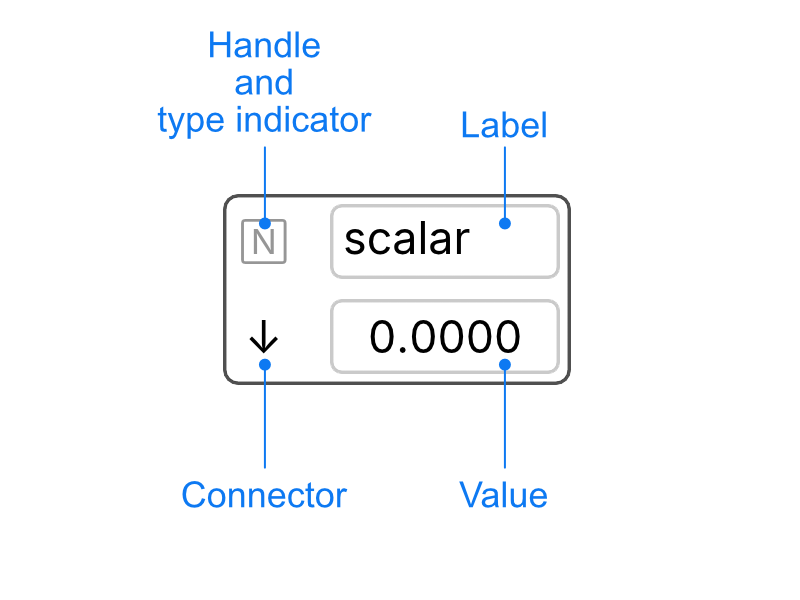
The type indicator show shows what type of node it is:
- N is for number (floats)
- T is for text (UTF-8)
Node label editing
A node’s label can be edited to rename the node.
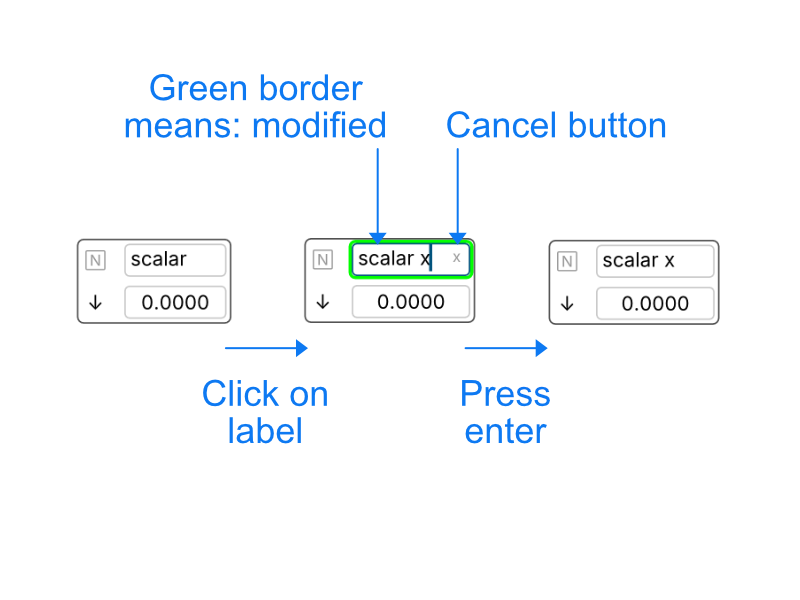
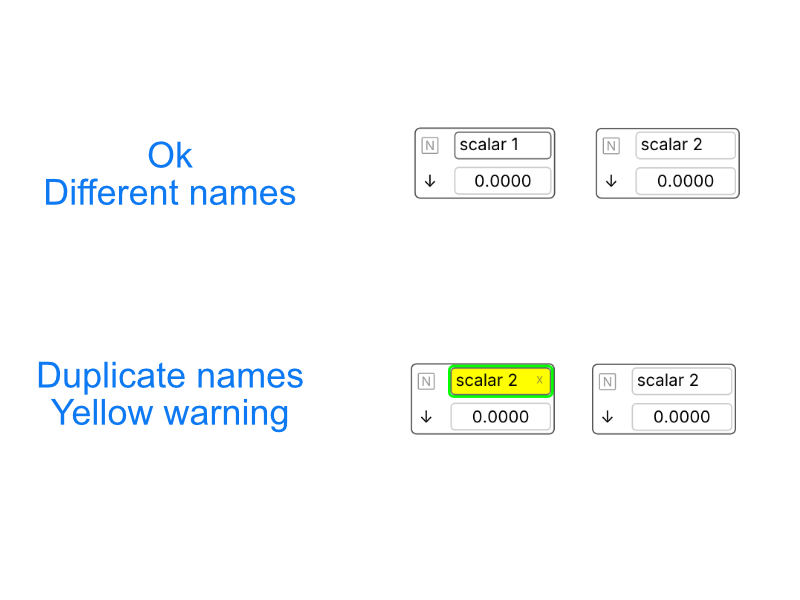
Node names are unique, there cannot be 2 nodes with the same name within a document.
If you try to rename a node with an existing name, the app will warn you by highlighting the name with a yellow background.
Scalar nodes
There are 2 types of scalar nodes:
- float: contains a float value: used in basic arithmetic and as input to SQL nodes.
- text: contains a string (mostly useful when connecting to a SQL node)
Moving nodes
To move nodes, use the handle of the node located in the top left corner of the widget. Function nodes can be dragged from anywhere.
Connecting nodes
Drag from the arrow pointing down (↓) in the node to the function node.
A function without all its inputs cannot be computed, hence the “error” output in the result node; once the function node has all its inputs the output will compute.
Disconnecting and reconnecting nodes
Nodes can be disconnect by deleting edges. To delete an edge, select it and press back space or the “delete” button in the toolbar.
Nodes can be reconnected, nodes can be connected multiple times.
Changing function nodes
Select a function node and click on another function in the panel. The result will update accordingly.
Chaining functions
To apply a function to a result node, select the result node and click on the button of the function.
Make sure the selection only contains 1 element for a function1.
“Function 1” and “Function 2” are respectively shorthand for “function of arity 1” and “function of arity 2”, a fancy way of saying how many arguments the function takes.